What is SensControl?
SensControl is a device that enables the configuration and analysis of IO‑Link devices. Serial number and other information are on the label on the bottom.
The SensControl app is available on Apple AppStore and Google PlayStore. Open the store from your device and type "SensControl" in the search box.
Functionality
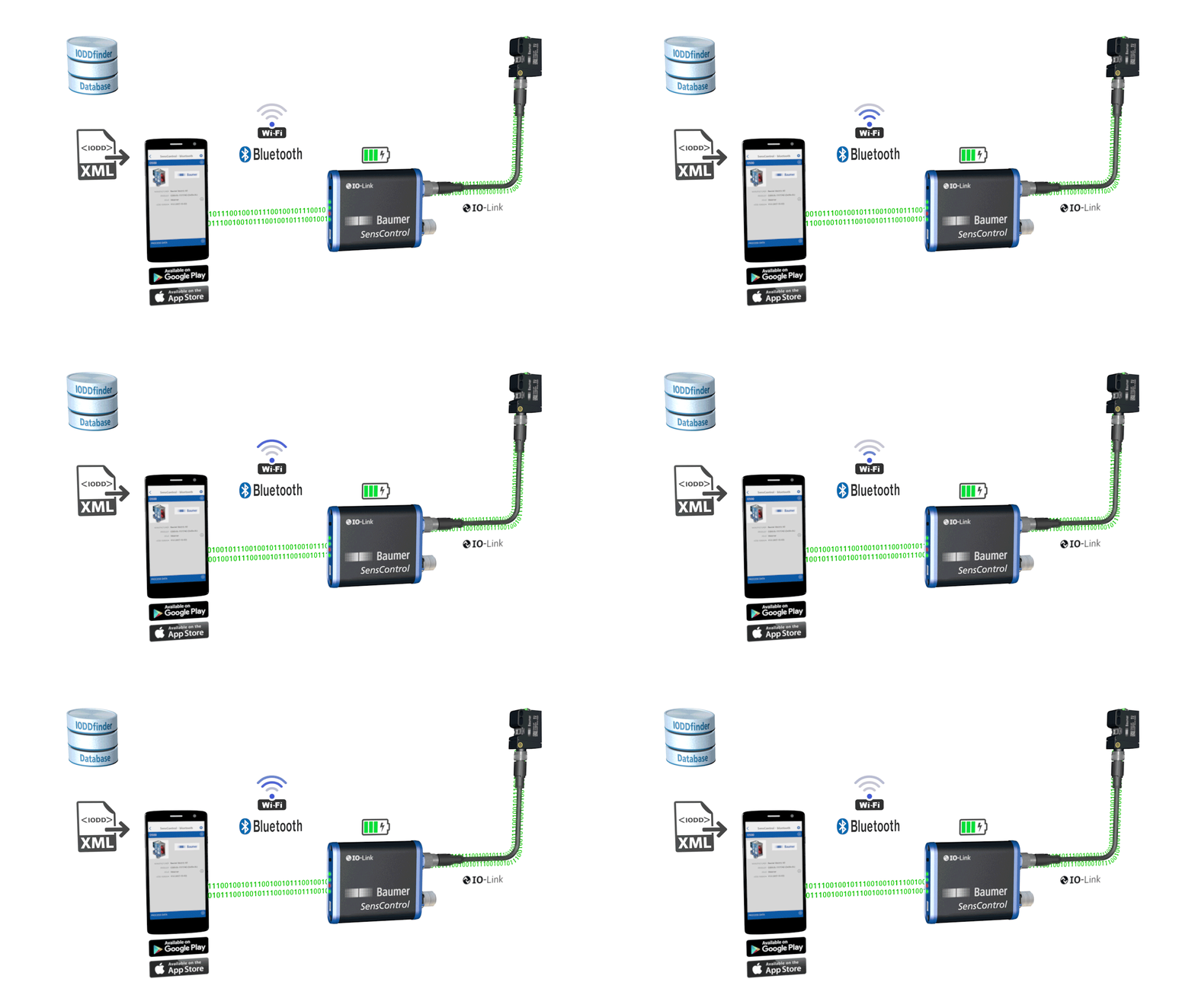
- Briefly press the button on the front of SensControl to turn it on. The device is initializing while LEDs 1 and 2 are flashing blue. Once started, SensControl offers a WLAN in Soft AP mode in the delivery state.
- Connect an IO-Link device to the device port on the back of the SensControl.
- Start the SensControl app on your smartphone or tablet.
- Select SensControl from the connection view. SensControl works best with Bluetooth Smart (Bluetooth LE) connectivity. Alternatively, the device can be connected via WLAN provided by SensControl and then SensControl must be selected in the "WLAN" panel of the connection view. SensControl's name is on the label on its underside.
- The SensControl app retrieves IODDs from online memory and saves them on the mobile device (for use without an Internet connection).
- Completed. Process data can now be observed and parameter values of the IO-Link device can be viewed and changed.
Online Database
The SensControl application retrieves definitions (IODD) for IO-Link devices from online memory. The application currently searches for device definition files for IO-Link devices by accessing https://www.ioddhub.com. Other portals and storages can be integrated into the application when available.
The SensControl application stores previously downloaded IODD files and associated images in an offline cache. The application can also be used without an internet connection if the necessary files have been downloaded before.
Power Supply
SensControl is equipped with batteries that will operate for approximately 3 hours when the IO-Link device draws an average power of 2 W. In battery mode, the SensControl provides up to 350 mA of power for the IO-Link device. If the IO-Link device to be used needs more power, the 24 V PSU can be connected to the IO-Link master port to power the IO-Link device directly.
Charging the Batteries
A conventional Mini USB cable can be used to charge SensControl. The USB cable can be connected to a conventional charger for mobile devices or to a PC/laptop. When a PSU or other power source is connected to the USB port, IO-Link devices consuming up to 200 mA can be operated. The fastest charging times are achieved using a powerful charger providing 2000 mA charging current. According to the manufacturer, the batteries support approximately 500 charging cycles.
modes
Transition Mode
Press the button 3 times within 3 seconds (triple click) to switch between "Master" and "Sniffing" modes. LED2 indicates the mode accordingly (see section "LED indicators").
Resetting to Default Settings
Press and hold the button (about 10 seconds) until all LEDs flash and then go out in sequence from left to right. SensControl now returns to the state in which it was delivered and carries the name and WLAN SSID specified on the label on the bottom of the device.
Master Mode
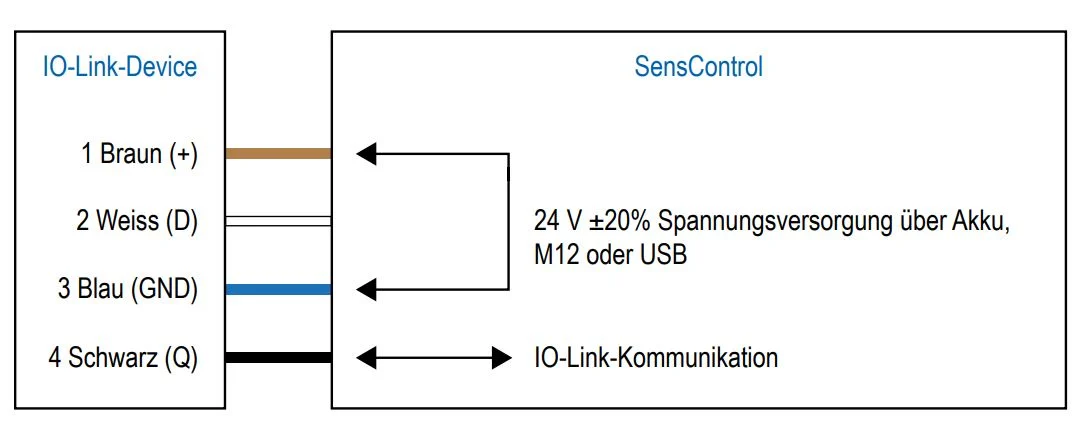
In master mode, SensControl communicates directly with the connected IO‑Link device, cyclically reads and writes process data and sends them to the SensControl application for display. In the reverse direction, parameter changes and control commands made in the SensControl application are transmitted to the IO‑Link device. Master mode is the mode in which SensControl is started. When an IO‑Link device is connected to the corresponding connector on the back, SensControl communicates with the IO‑Link device and maintains communication as long as the device remains connected.
Sniffing Mode
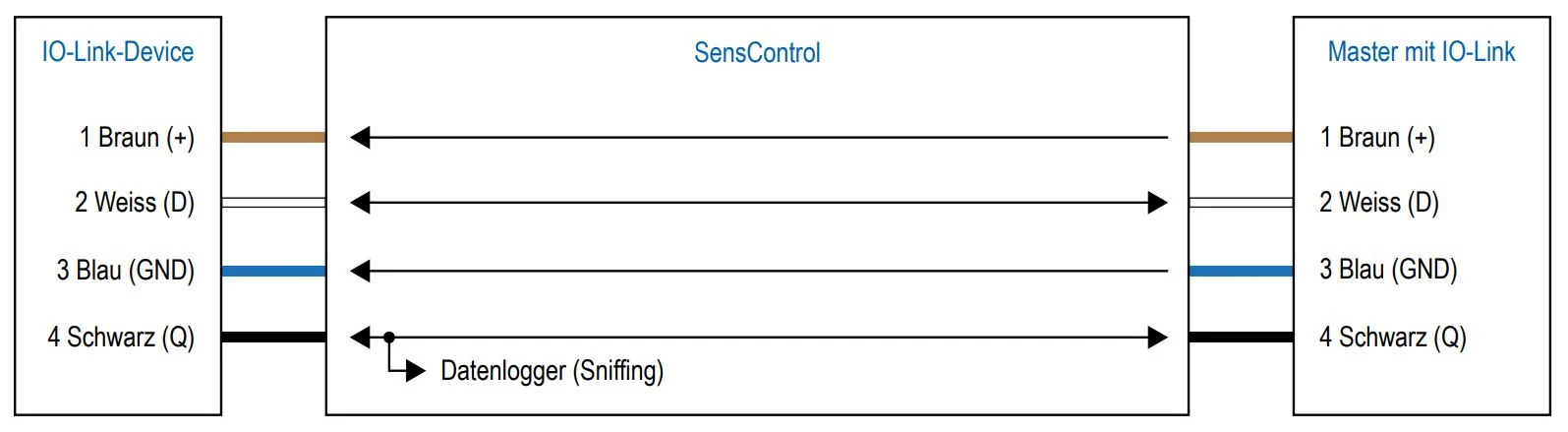
In sniffing mode, SensControl is located between the IO‑Link device and the IO‑Link master. Without affecting the existing connection between the IO‑Link device and the IO‑Link master, SensControl monitors this communication and saves it on an SD card. This data can then be read and analyzed. To use SensControl in sniffing mode, an SD card must first be inserted into the slot on the back. The first partition of the SD card must be in FAT32 format. Quickly press the button on the front 3 times to put SensControl into Sniffing mode. The device now goes into Sniffing mode, which is indicated by LED2 glowing blue. Now connect an IO‑Link master and an IO‑Link device to the corresponding connectors on the back of the device. Data recording starts automatically and a new file is created for each Sniffing session. To exit sniffing mode, quickly press the front button 3 times again. This is the recommended way to write all data to the SD card.
Direct Mode
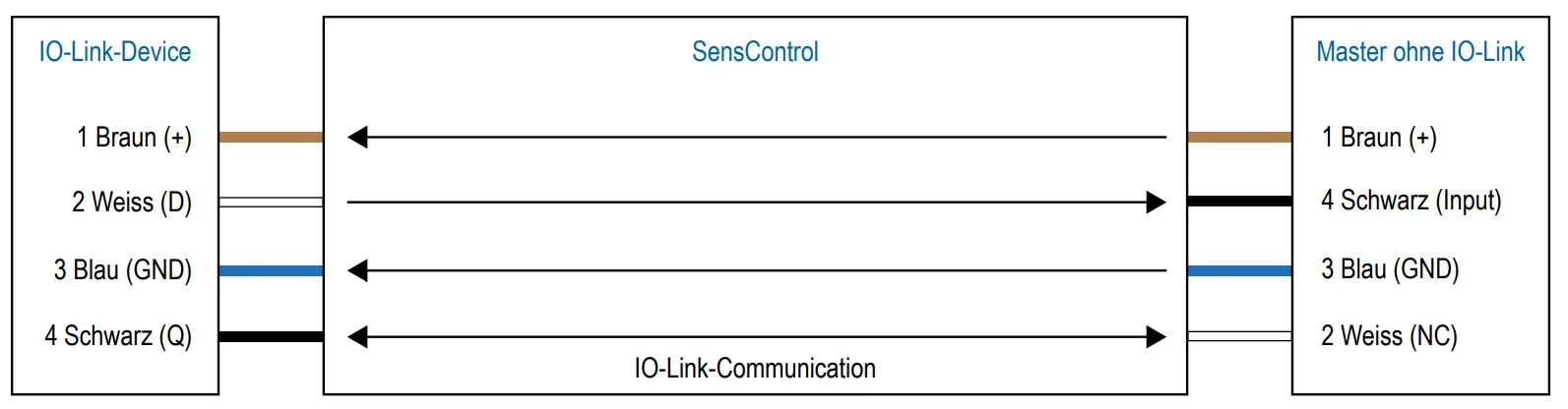
If modern, IO‑Link compatible, 4-wire devices are used in legacy systems, SensControl ensures the full IO‑Link functionality of the devices. For this mode, the Q2 connection of the device must be configured as output, providing the original function of a conventional device. SensControl connects output Q2 to the master and enables parallel communication with the IO‑Link device.