Baumer GAPI SDK with 10 GigE Cameras [AN201802]
Baumer Cameras with 10 GigE Interface
This application note explains possible root causes, offers troubleshooting methods and introduces Baumer-tested PC systems for using 10 GigE cameras with the Baumer GAPI SDK.
Baumer GAPI SDK
Baumer GAPI SDK supports cameras with 10 GigE interfaces compliant with IEEE802.3an (10GBase-T Copper) and IEEE802.3ae (Fiber Optic) standards as of version 2.9.0.
However, the PC system used must support the increased bandwidth of the 10 GigE interface. If the PC system cannot support this increased bandwidth, packet losses and corrupted images may occur.
Recommended PC Systems and Configuration
Baumer GAPI SDK has been tested using two 10 GigE cameras and Baumer Filter Driver operating at maximum bandwidth. The imported images are displayed by Camera Explorer. Other than imaging, no background processes, third-party software, antivirus software or user interaction are performed on the PC.
Note:
For optimal performance on Windows systems, it is highly recommended to use Baumer Filter Driver.
Hardware
Baumer considers the hardware used for these tests to be the minimum recommended configuration:
| CPU | Intel® Core™ i7-7820X (8 Cores, 3.6 GHz) |
| RAM | 2 x 16 GB RAM (Dual-Channel) |
| NIC | Intel(R) Ethernet Converged Network Adapter X550-T2 |
The test performed on the PC system mentioned above creates approximately 15% load.
Since in addition to image acquisition and display operations, image processing must also be performed in the running application, a significantly more powerful system may be required.
Operating System
Baumer recommends Windows 7 (min. SP1) and Windows 10 (min. V1607), as well as all modern Linux versions (e.g. Ubuntu 16.4, Debian 9.3, Fedora 27) as 64-bit operating systems, including the latest patches.
Recommended System Configuration
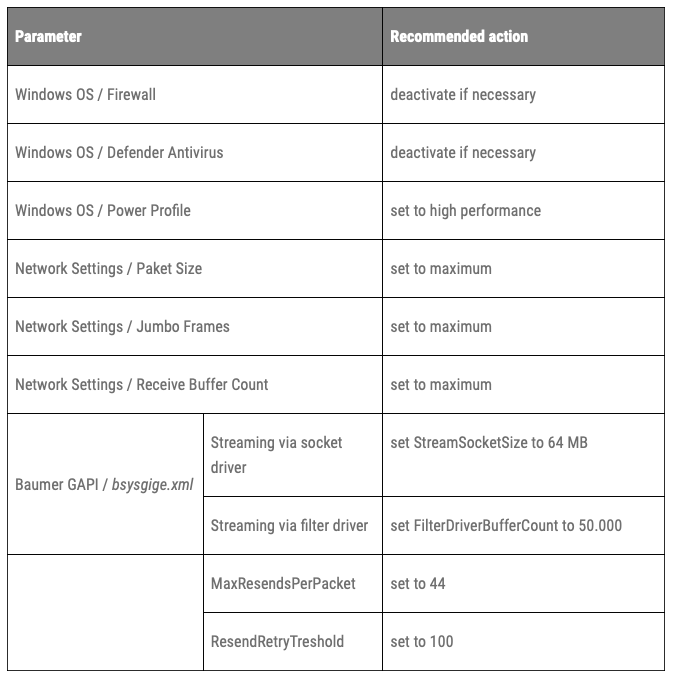
The image acquisition process depends on parameterization and processes running in parallel. If corrupt images occur, check the following configuration parameters:
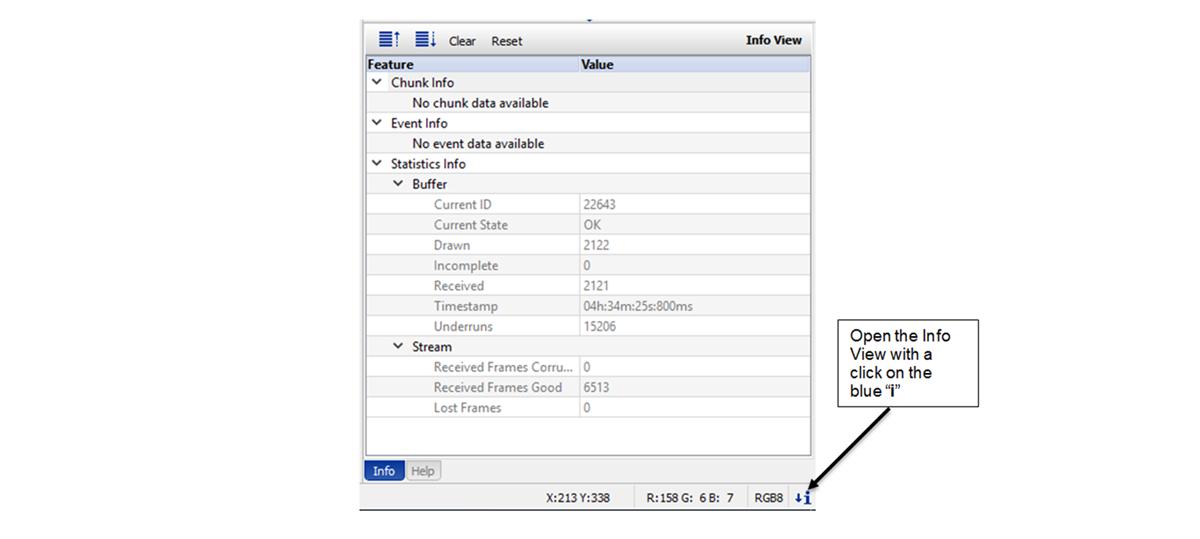
Camera Explorer Image and Package Statistics View
Camera Explorer provides statistical information in the information view. You can use this view to check the stability of the image stream.
Possible Causes of Packet Loss
In a typical camera system, no packets should be lost in the network because imaging networks are usually quite small and isolated. If packets are being lost on the network, we recommend that you re-examine the system to troubleshoot the problem. We do not find such a network suitable for machine vision applications.
The most common cause of packet loss is when packets correctly received by the Ethernet stack fill existing packet queues because they are not received by the software quickly enough. When a packet queue is full, all incoming packets must be rejected by the Ethernet stack.
If packet queues remain full for a long time, it is likely that the PC system is not powerful enough for the given application.
However, even on a very powerful PC system, a brief interruption in the received application can flood packet queues and cause packets to be dropped (lost). In these cases, the retransmission algorithm can help to get the necessary packets back.
note
The most common reason for these interruptions is that the operating system schedulers have minimal time to switch between tasks. On Windows® systems, switching between two tasks takes approximately 15 ms. This time may be sufficient to fill the system's packet queues and therefore cause packets to be dropped or lost.
Retransmission Algorithm – Network Recommendation
Theoretically, 10 GigE has a maximum bandwidth of 10 Gbit/s. The GigE Vision Standard uses the UDP protocol, which allows using 100% of the available network bandwidth without reserving capacity for the necessary packet resending.
Baumer GAPI needs available bandwidth for any packet retransmission that may be required. Particularly in large network configurations where packet loss is a greater concern, it is recommended that no more than 90% of the maximum bandwidth be used for the system and camera configuration so that sufficient capacity remains for packet resending.
Bandwidth problems often manifest with distorted images. There are several configuration options to reduce bandwidth:
- Reduce the frame rate (fps) (e.g. AcquisitionFrameRate, AcquisitionFrameRateEnable).
- Reduce frame size (e.g. reduce ROI, binning, etc.) to achieve higher frame rates at similar bandwidth.
- Choose a smaller pixel format, for example using Mono12 instead of Mono8, to achieve higher frame rates at similar bandwidth.
It's also a good idea to set a packet delay with GevSCPD to create small gaps between packets (see figure below). This spreads an image's data and can help the system process the data at a slower but sustained rate.

note
Calculation Example, Packet Delay
A 10 GigE network provides 10 Gbit/s bandwidth, which means 10 bit/ns. When the packet size is set to 9000 Bytes (72000 bits), it takes approximately 7200 ns to send a packet.
GevSCPD should therefore be set to 720 ns to create a 10% gap between each packet.
Attention:Different cameras may use different units for the GevSCPD parameter. Refer to the Technical Data Sheet for more information.
Resubmission Algorithm – Configuration
The Baumer retransmission algorithm is responsible for retransmitting packets that were not received correctly. Typically, packets are dropped when there is a sudden increase in system processing activity, when it cannot process packets at the required speed. There are several parameters to configure the algorithm, ideal values depend on the overall system and its performance. All parameters can be configured in the bsysgige.xml file.
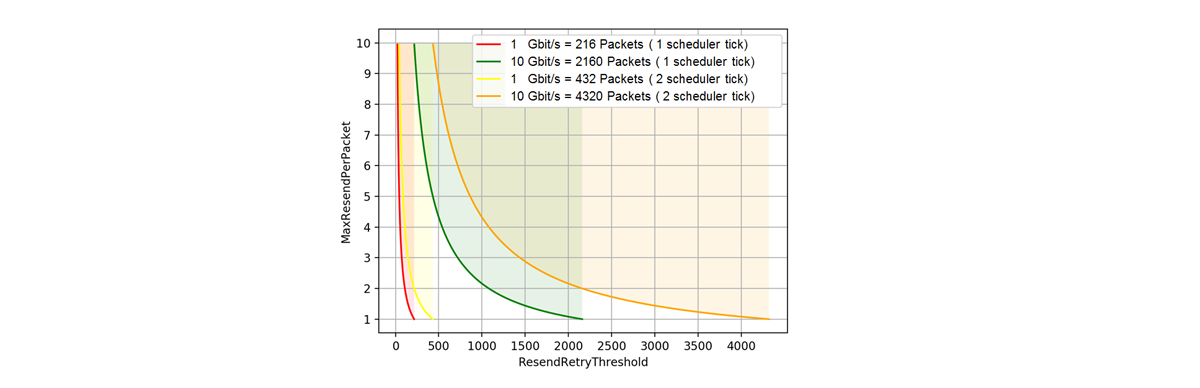
The diagram above shows the minimum required packet queue depth for 1 GigE and 10 GigE so that the system can temporarily store a sufficient number of incoming packets during one or two scheduler passes. Once the scheduler reactivates the receiving thread, these packets can be received safely. If the product of ResendRetryThreshold and MaxResendsPerPacket falls below the line, packets are lost in the given case.
ResendRetryThreshold: There may be a queue of packages waiting for the system to process. The requested retransmission packet is added to the end of the queue and cannot be verified as being received immediately. This parameter sets how many packets the system must wait before requesting again or giving up completely. Generally, it's a good idea to wait a bit for the system to recover and then request a retransmission.
Note:
Each camera has a limit on the number of packets and/or images that can be held in memory. Therefore, a ResendRetryThreshold value that is too high may mean that the camera cannot deliver the requested packet.
MaxResendsPerPacket:This parameter determines how many times a packet can be requested to be resent. A high value increases the chance of a packet being recovered, but repeatedly requesting lost packets may increase system load.
If the system produces missing images, the ResendRetryThreshold value can be increased, and if the missing images are not received, the MaxResendsPerPacket value can be increased, which can be tried to see if a stable transfer is achieved.
Note:
The product of ResendRetryThreshold and MaxResendsPerPacket must always be smaller than the packet queue. Therefore, you need to adjust the FilterDriverBufferCount and StreamSocketSize accordingly.
Calculation Example, Resubmit Parameters
How many packets are created during a timer pass?
- 1GBit/s= 125 kByte/ms, when MTU size is 9000 kByte, this means 13,888 Packets/ms.
→ 216 packets are generated during the 15.6 ms timer transition. - 10GBit/s= 1.25 Mbyte/ms, when MTU size is 9000 kByte, this means 138.88 Packets/ms.
→ 2167 packets are generated during the 15.6 ms timer transition.
Calculation of retransmission parameters depending on the required packet queue depth:
PQD = MRPP * RRT
PQD = PacketQueueDepth – Depth of packet queue
MRPP = MaxResendPerPacket – Sets the maximum number of times a packet can be resent, increasing it may create additional network load.
RRT = ResendRetryThreshold – Sets the time until the first resend request, increasing it may cause delays in receiving images.
Additional Configuration and Optimization
Below we have collected some measures that should be taken to improve system performance and stability.
Windows
- Check running processes in Task Manager, try to disable or stop unnecessary ones. Even if a process is currently idle, it may generate an event or sudden activity at a scheduled time, which can reduce the performance of the system.
- Check running services in Task Manager and again try to disable or stop unnecessary ones.
- Anti-virus software or indexing systems in particular can reduce the overall performance of a Windows system.
General Network Optimization
- Check if the 10GigE adapter is on the Baumer compatibility list (others may also work but have not been tested for possible problems).
- If you haven't already, install the latest Baumer Filter Driver.
- Check if Baumer Filter Driver is selected on the 10GigE network adapter.
- Check the 10GigE network adapter and remove any other Protocols or Services that are not needed.
Related Topics
For general GigE configuration recommendations, please refer to the Baumer Application Note: